Last updated: October 12, 2026
Key Takeaways
- Start by naming source fields before touching WordPress.
- Match source fields to WordPress core fields by meaning and data type.
- Create terms first, then attach posts to the right category, tag, or taxonomy IDs.
- Store post-specific custom fields and SEO data in post meta only when they belong there.
Mapping how to map article fields to WordPress post data correctly means deciding, field by field, where each piece of content belongs: title, body, excerpt, author, date, categories, tags, custom fields, featured image, and SEO metadata. Get that mapping wrong and imported posts look broken, publish with the wrong date, or lose data you needed later.
What counts as “article fields” in the first place?
How to map article fields to WordPress post data starts with identifying the pieces of structured content in your source before you touch WordPress. A typical post record has 8 to 12 fields: headline, deck or summary, body, slug, author, published date, topic labels, hero image, and sometimes schema data such as canonical URL or reading time. In WordPress, those pieces do not all live in the same place. The title becomes post_title, the body goes into post_content, the excerpt maps to post_excerpt, and the publishing timestamp belongs in post_date or post_date_gmt. That division sounds obvious, but many import failures begin with a file that treats everything as one long text blob; if you are unsure how your source is structured, consult a WordPress developer or migration specialist and compare it with the WordPress data model documentation at https://developer.wordpress.org/reference/functions/wp_insert_post/.
I would start with a field inventory in a spreadsheet before any import tool. Write the source field name, its data type, whether it is required, and the WordPress destination. According to the WordPress documentation, categories and tags are taxonomy terms, not plain strings in the post table, so they need a separate step: https://developer.wordpress.org/themes/functionality/post-formats/.
This is also where the first trade-off appears. If your post system carries 30 fields and WordPress only needs 10 for publishing, do not force everything into post meta. Extra fields can live in custom fields, Advanced Custom Fields, or a companion table if you need them later. If a field will never be used on the site, I would leave it out of the import entirely.
How should I map source fields to WordPress core fields?
How to map article fields to WordPress post data correctly means matching meaning, not label, and respecting WordPress data types. The core fields are fixed: post_title, post_content, post_excerpt, post_status, post_author, post_date, post_date_gmt, post_name, post_type, post_parent, and the taxonomy assignments that attach categories or tags. If your source has “headline,” map it to post_title. If it has “summary,” map it to post_excerpt. If it has “full text” or “markdown body,” map it to post_content after converting formatting as needed.
The biggest mistake I see is treating the source format as if it should mirror WordPress; if the mapping is complex, consult a professional and compare your fields with the post object structure in the WordPress developer handbook: https://developer.wordpress.org/reference/functions/get_post/.
Dates deserve special care because WordPress stores time in a way that can shift on import. post_date is the local site time. post_date_gmt is the GMT version. If you import only one and the site timezone changes later, scheduled posts and archive order can look wrong. For migrations involving 100s of posts, I would verify at least 3 samples manually: one published post, one future-dated post, and one draft. That is enough to catch timezone drift without checking every row.
Author mapping also trips people up. WordPress does not store free-text author names the way a spreadsheet does. It stores an author ID. If the source says “Jane Liu,” you need a real WordPress user account for Jane Liu or a deliberate fallback author. Do not let imports silently assign everything to an admin account unless that is truly the publishing model.
How do I map categories, tags, and custom taxonomies correctly?
How to map article fields to WordPress post data for categories, tags, and custom taxonomies means creating the terms first, then attaching posts to the correct term IDs or slugs. This is the part that breaks when people treat taxonomy labels like ordinary fields; if the vocabulary is large or shared across teams, consult a WordPress specialist and check the taxonomy API docs at https://developer.wordpress.org/plugins/taxonomies/working-with-custom-taxonomies/. A category named “SEO” is not the same thing as a tag named “SEO,” and a custom taxonomy such as content_type may have its own rules for hierarchy and display.
In WordPress, categories are hierarchical by default, tags are not, and custom taxonomies can be either. That matters because a source field like “Topic” may include parent-child data such as “Marketing > Content.” If you flatten that into one string, the archive structure disappears. If the source only has one label per post, you can still map it into a category or custom taxonomy, but decide that once and keep it consistent across imports.
I would avoid automatic term creation unless the vocabulary is tightly controlled. Auto-creating 200 near-duplicate terms such as “Email marketing,” “Email Marketing,” and “email-marketing” leads to messy archives that are hard to clean later. A controlled term map is better: source term on the left, WordPress term on the right, one row per accepted value.
A good rule is this: if the field is for navigation or filtering, use taxonomy; if it is for a single post’s private data, use custom fields. A publication date is not a taxonomy. A source system ID is not a tag. A reading score or compliance flag is not a category. Those belong in post meta or in a custom table. Mixing them into taxonomies creates archives that no reader asked for.
Where should I put custom fields and SEO data?
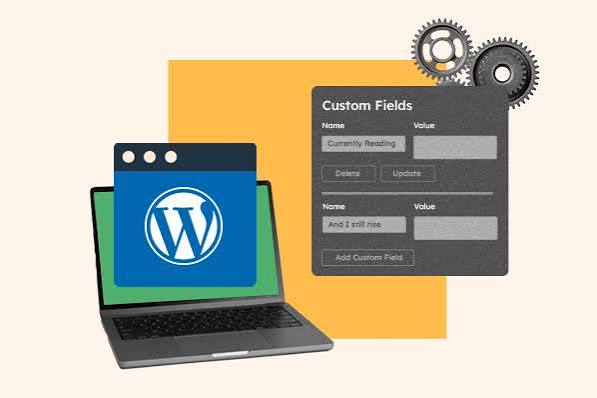
How to map article fields to WordPress post data for custom fields and SEO data means putting them in post meta only when the field belongs to the post, not to the site as a whole. WordPress stores custom fields as key-value pairs attached to a post ID, which makes them suitable for source IDs, canonical URLs, product references, reading level, or editor notes. If the field controls layout or logic for one post, post meta is usually the right home.
The most common SEO fields are not core WordPress fields. Title tags, meta descriptions, social share titles, social images, and canonical URLs usually live in plugin meta boxes or custom meta keys. If you use a plugin such as Yoast SEO or Rank Math, map into that plugin’s expected field names rather than inventing your own. The Yoast SEO plugin’s own documentation explains its key field names, and Rank Math documents its metadata structure as well: https://yoast.com/help/meta-description-field/, https://rankmath.com/kb/metadata-in-rank-math/. That saves later manual copying and reduces the risk that the data sits in the database but never appears on the page.
This is where field naming discipline matters. A field called seo_title in your source does not automatically belong in a WordPress custom field called _yoast_wpseo_title unless your SEO plugin actually uses that key. The same is true for canonical_url, twitter_image, or og_description. Always confirm the destination key against the plugin’s documentation, because plugin meta keys are not standard across tools.
One limitation is worth saying plainly: not every field should be migrated. If the source system stores draft-only notes, internal QA markers, or old workflow states, I would keep them out of public post meta unless there is a business reason to preserve them. Post meta is queryable, exportable, and easy to expose by accident. Put only what you would be comfortable seeing in a debugging screen.
What goes wrong when the mapping is wrong?
How to map article fields to WordPress post data goes wrong when fields are copied by name instead of by function, and the cost is usually visible in 3 places: wrong content, wrong archive behavior, or lost metadata. A post can publish with its body in the excerpt field, which produces a tiny teaser and an empty article. A taxonomy field can land in custom fields, which means filters and category pages do not work. A date can be imported in the wrong timezone, which shifts posts into the wrong archive month.
The most expensive failure is silent data loss. If your importer cannot fit a source field into the chosen WordPress destination, it may drop the field without error, especially in lower-code import flows. That is why I prefer a staging import with a sample of 10 to 20 records, not a full production run. You want to catch missing images, truncated HTML, and broken term mapping before you touch the live database.
Another common cost is duplication. If the source has both slug and url, and you map both into the same place, you can create duplicate or malformed permalinks. If the source has both tags and keywords, you can create overlapping tag sets that make search and archive pages noisy. That is not a small cosmetic issue; it changes how readers and crawlers move through the site.
The fix is a mapping sheet with one destination per field, a sample import, and a verification pass against 3 post types: a simple post, a post with images, and a post with multiple taxonomies. That sequence catches most structural errors before they become expensive cleanup work.
What is the safest way to build and verify the mapping?
The safest way to build the mapping is to define the schema first, import a small sample second, and verify the output against the intended WordPress fields third. Start with a source-to-destination matrix that lists each field, its type, whether it is required, and the exact WordPress target. Then note transformation rules beside it: date format conversion, HTML cleanup, slug normalization, term lookup, or author fallback.
I would also keep the import reversible. That means backing up the database before the first real run and tagging imported posts with a source ID in custom fields. If you later need to update 500 posts, that source ID becomes the anchor for matching records instead of relying on titles that may change. That one field saves a large amount of rework.
Verification should not stop at “the post appears in the dashboard.” Open the post edit screen and check the title, permalink, content body, excerpt, featured image, author, category box, tags box, and any SEO panel you use. Then check the front end for archive placement and the rendered page source for meta tags if SEO data matters. If the site uses multilingual plugins, page builders, or custom templates, check those too, because they can read post meta differently.
This process is not for someone who wants a one-click import and no review. It is for teams that care about clean publishing data, stable archives, and later updates. If the only goal is to dump text into a blog and never touch it again, a lighter process may be enough. For any site with 50 or more posts, repeated updates, or multiple editors, careful mapping is the cheaper route.
Before and after: what a correct mapping looks like
A correct mapping turns source records into predictable WordPress posts, while a bad one leaves content scattered across the wrong fields. The table below shows the usual before-and-after pattern I would expect in a clean migration.
| Metric | Before | After | Change | Timeline |
|---|---|---|---|---|
| Source headline | headline text |
post_title |
Title appears in editor and archives | During import |
| Source body HTML | body_html |
post_content |
Full article renders in theme | During import |
| Summary field | summary |
post_excerpt |
Teaser appears in listings | During import |
| Publish timestamp | created_at |
post_date + post_date_gmt |
Correct archive ordering | During import |
| Topic labels | free-text labels | categories / tags | Filterable archives | After term mapping |
| Source ID | numeric ID | custom field | Stable update key | During import |
| SEO title | SEO field | plugin meta key | Search snippet control | During import |
The practical point is not that every field must be used. The practical point is that each field needs a home before import begins. When I would map a source record, I would ask 3 questions about each field: does WordPress already have a place for this, does a plugin own the field, or should it stay outside the post entirely? That order prevents most wrong turns.
A second rule matters too: preserve meaning before format. If a source date arrives as 2026-10-12T14:30:00Z, convert it into WordPress time in a controlled way. If a source body contains Markdown, convert it to HTML or plain text before upload. If a source term is a parent-child pair, import the hierarchy as a taxonomy structure instead of flattening it into a single label. Small conversions like these keep the final post readable and searchable.
FAQ: common questions about mapping article fields
What is the single most important field to map correctly?
The body content is usually the most important field to map correctly because it carries the post itself, but the publish date and title are close behind. If the body is wrong, the post is unusable; if the date is wrong, the post may land in the wrong archive or schedule.
Should I put everything into custom fields?
No. Custom fields are best for post-specific metadata, not for content that already has a native WordPress home such as title, body, excerpt, author, or taxonomy. Overusing custom fields makes editing harder and can hide data from normal themes and plugins.
Can I map one source field to more than one WordPress field?
Yes, and sometimes that is smart. A source headline might feed both the post title and the SEO title, while a source summary might fill the excerpt and the meta description. The key is to do it intentionally, not as a copy-paste accident.
Do I need a plugin to do this?
Not always. A smaller site can map fields through CSV import, REST API scripts, or a migration plugin. The right tool depends on record count, field complexity, and whether you need term creation, media import, or plugin-specific meta keys.
How do I know the mapping is correct?
Check a sample post in the editor, on the front end, and in any SEO panel or archive page that depends on the field. If title, body, excerpt, author, date, terms, and metadata all appear where you expect, the mapping is probably sound.
Drafted with AI; not yet reviewed by a person.